Personal budget planner

Plan your monthly budget. Know what’s safe to spend.

Exp Planner keeps your plan for the month next to what you actually spend, and turns both into one number you can rely on: how much you can spend today without feeling it next week.

New accounts are by invitation for now.Ask for an invitationsupport@expplanner.com

Early access by invitation, free · Data stored in the EU · No ads

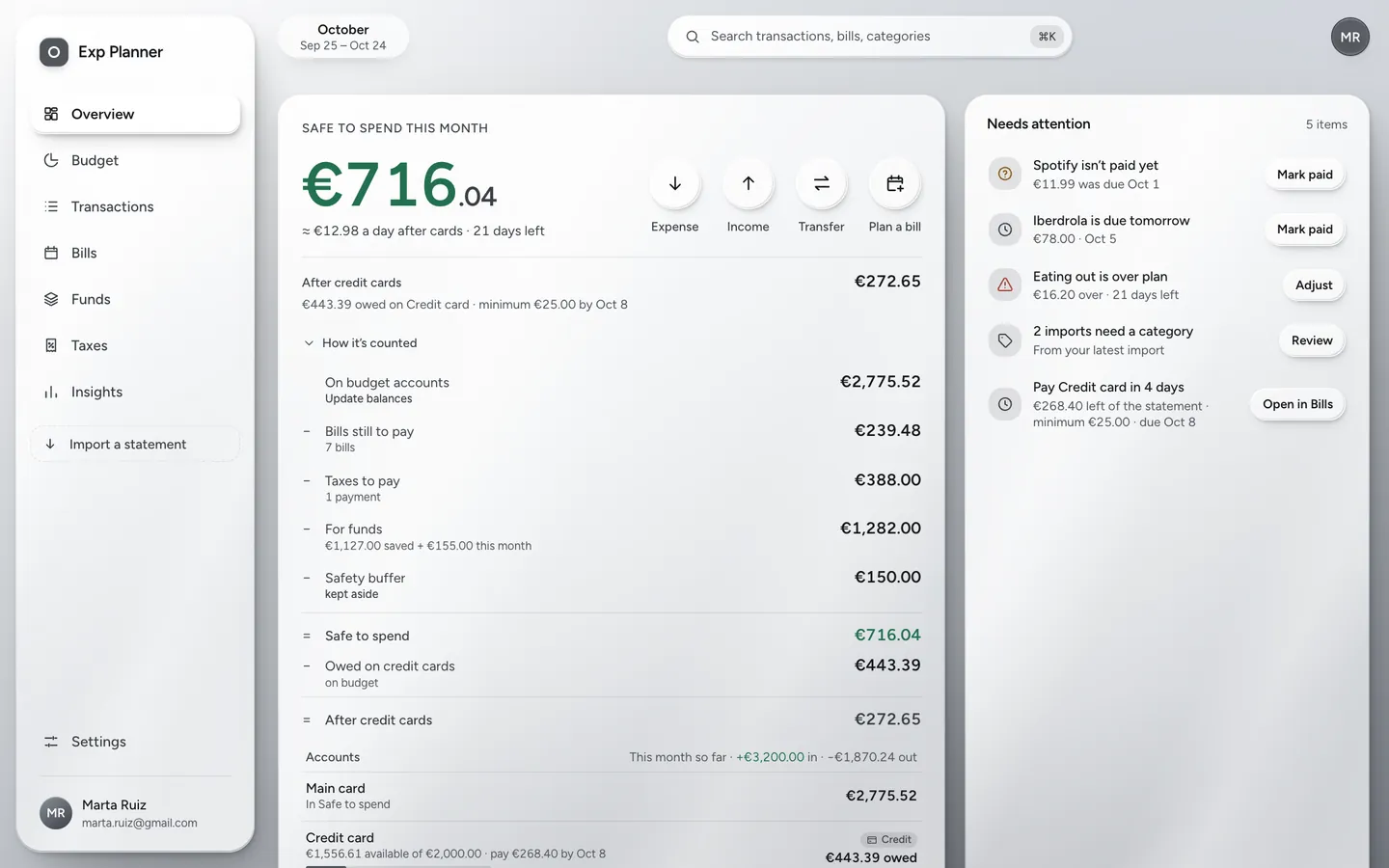
The Overview screen on a computer: €716.04 safe to spend this month with the Expense, Income, Transfer and Plan a bill buttons beside it, €272.65 after credit cards, how it’s counted, and what needs attention.
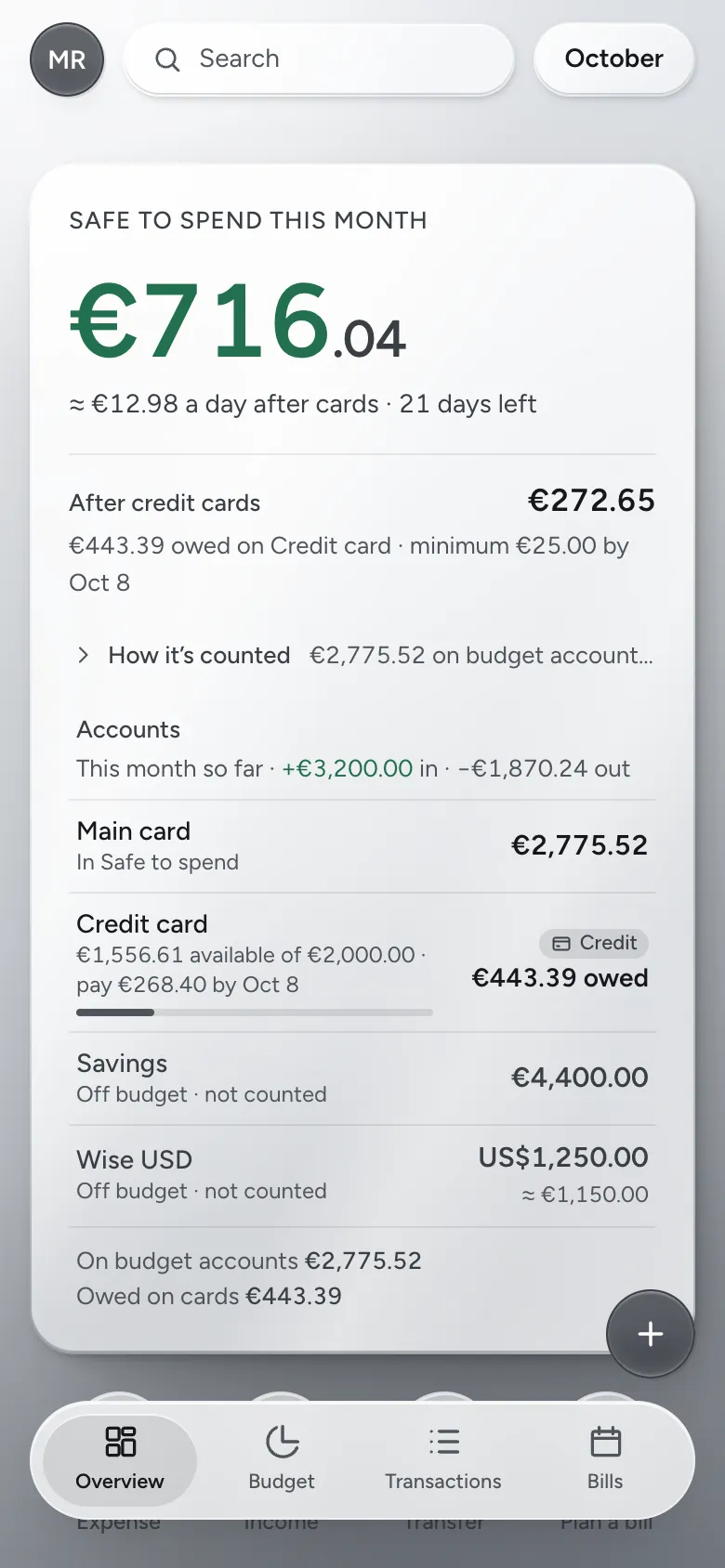
The Overview screen on a phone: €716.04 safe to spend, about €13 a day after cards for the 21 days left, and €272.65 after credit cards.

Safe to spend

One number for today

Start with your own money on your everyday accounts. Take away the bills that are still to come, taxes due, what you’re putting aside, and a small safety buffer. What’s left is safe to spend, split across the days left in the month. Owe something on a credit card? A second figure shows what’s left once it’s paid, and while a statement is due, the daily amount comes from that one. Open “How it’s counted” in the app and every line is there.

An example month
On budget accounts
€2,775.52
Bills still to pay7 bills
− €239.48
Taxes to pay1 payment
− €388.00
Put aside in funds
− €1,282.00
Safety buffer
− €150.00
Safe to spend
€716.04≈ €12.98 a day after cards · 21 days left
Owed on credit cards
− €443.39
After credit cardsminimum €25.00 by Oct 8
€272.65

Budget

The plan and the actual, side by side

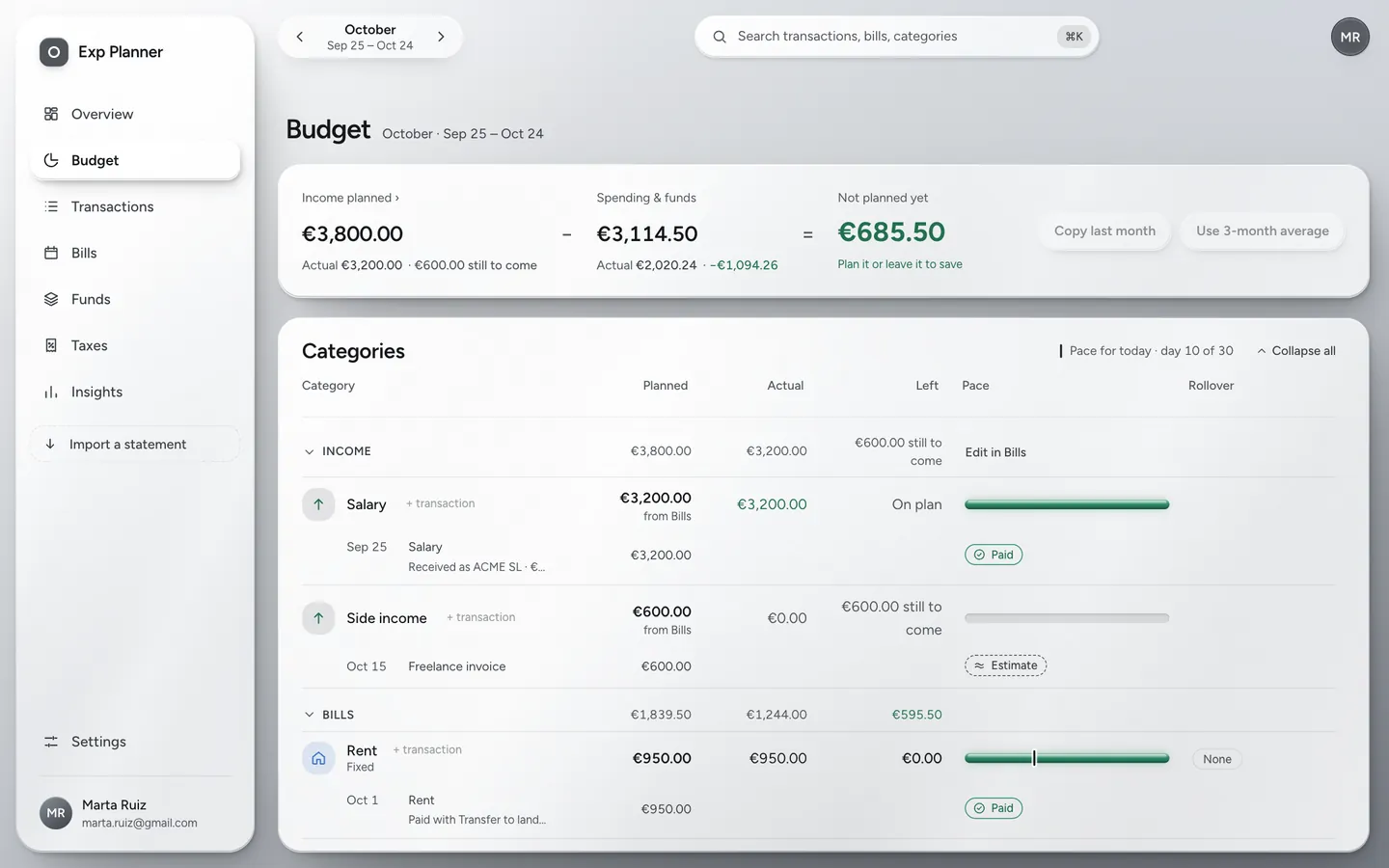
Give each category a limit for the month and watch spending fill it. A pace marker tells you when you’re spending faster than the month is going. Leftovers can roll over to next month, and when a month ends, a short review shows where the income went before you close it.

How it works
The Budget screen: categories with their plan, what’s been spent, what’s left, and a progress bar for each.

Bills and reminders

Bills that don’t slip through

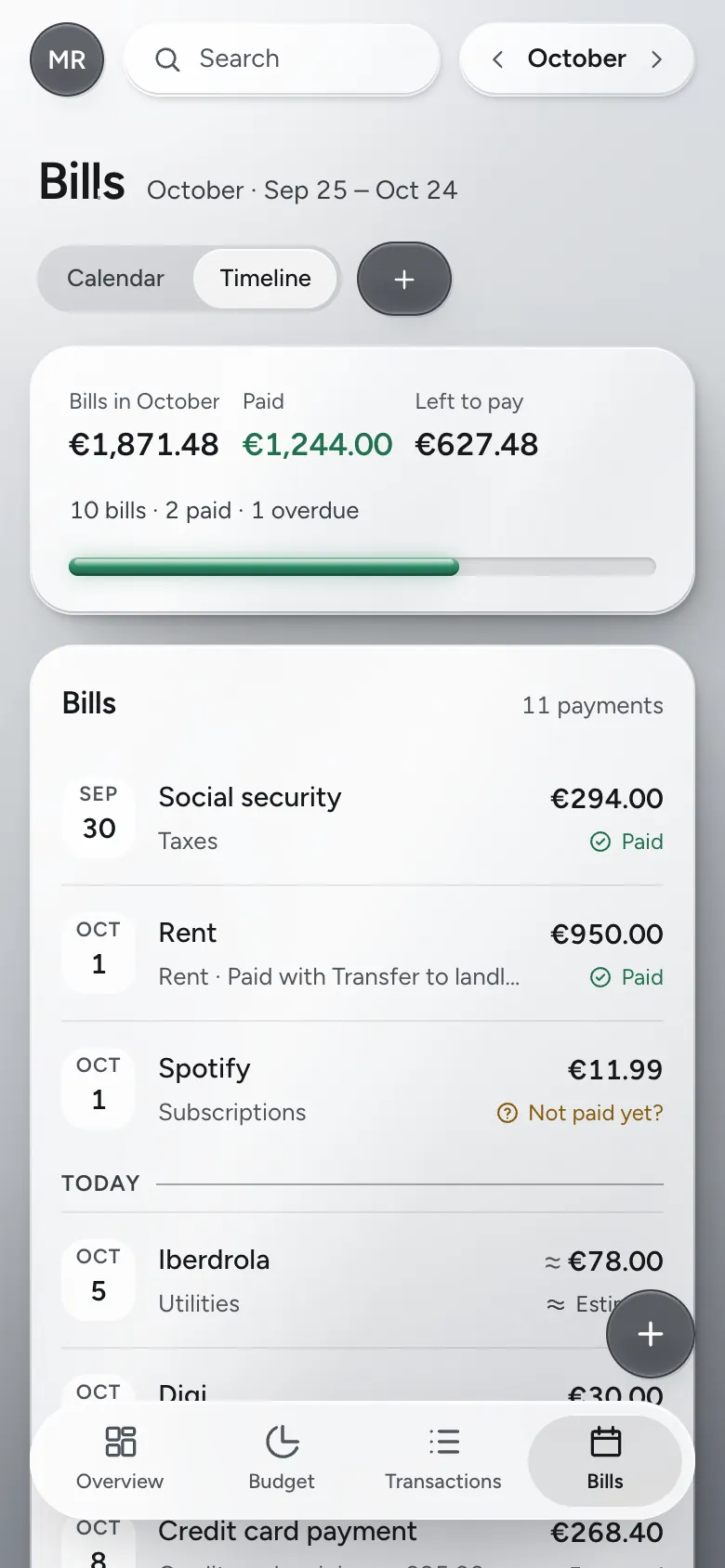
Plan rent, subscriptions and your salary once. They’re taken out of Safe to spend before the money leaves, they sit on a calendar, and they mark themselves paid when the matching transaction comes in. A reminder arrives before each one is due, on the web and on Android.

How it works
The Bills screen on a phone: the month’s payments with their dates, amounts and status.

Import from your bank

Your bank’s data, without your bank password

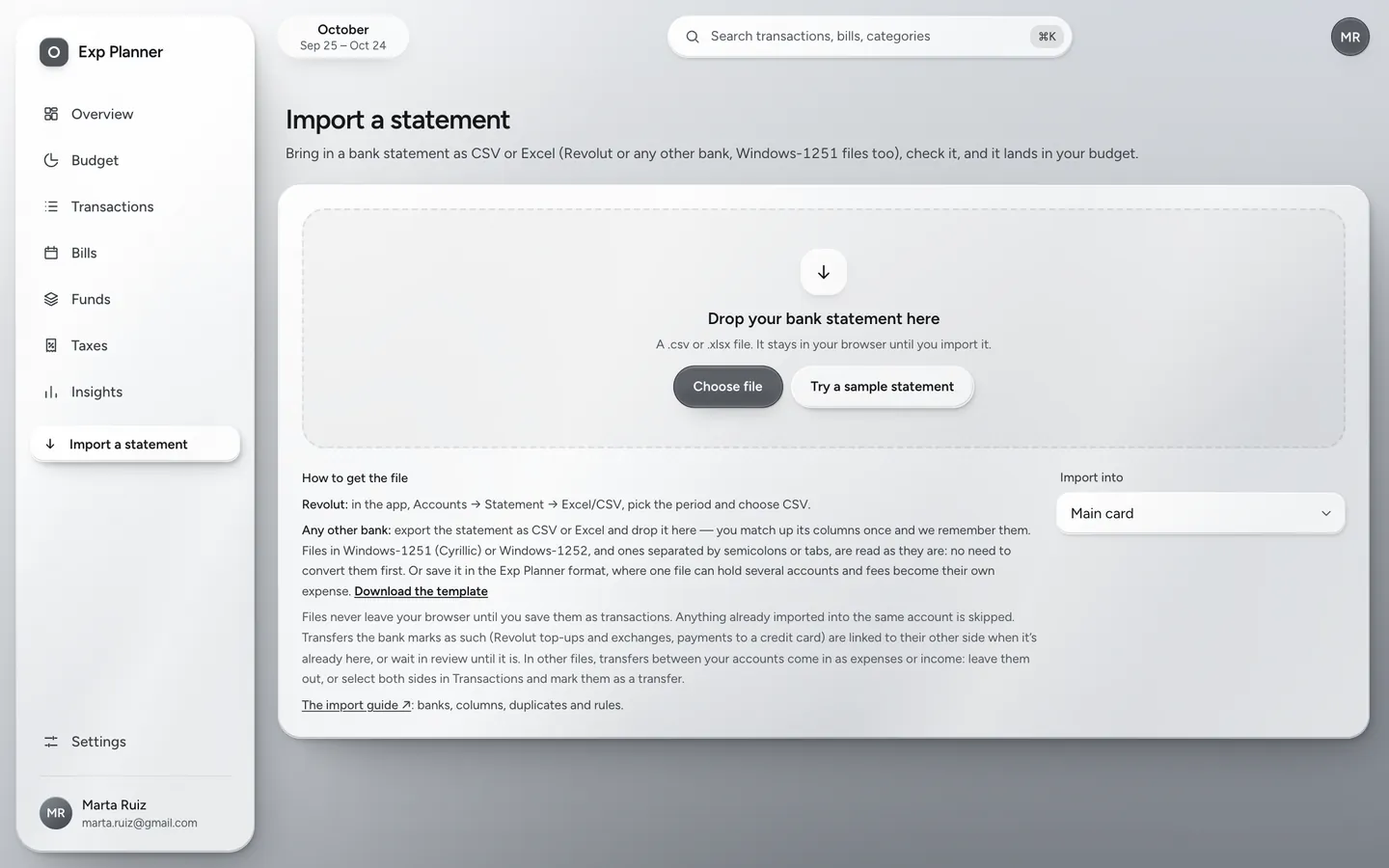
Exp Planner never connects to your bank. Download a statement as CSV or Excel from any bank, drop it in, check the preview, and import. Rows you already have are caught, your rules fill in the categories, and one tap undoes the whole import if something looks off.

How it works
The Import screen: drop a bank statement in CSV or Excel to preview it before importing.

And everything around it

Credit cards, overdrafts and credit lines

Credit shows as what you owe, never as money you have, with what’s left of the limit and a bar that turns amber, then red.

How it works
  • Limit, statement day, minimum payment and interest, set once
  • The statement becomes a bill: pay in full, the minimum or any amount, or let it pay itself
  • Card statements import cleanly: payments pair up, interest and fees get a category
  • Choose whether card spending counts the day you spend or when the statement is due
A purchase in two taps

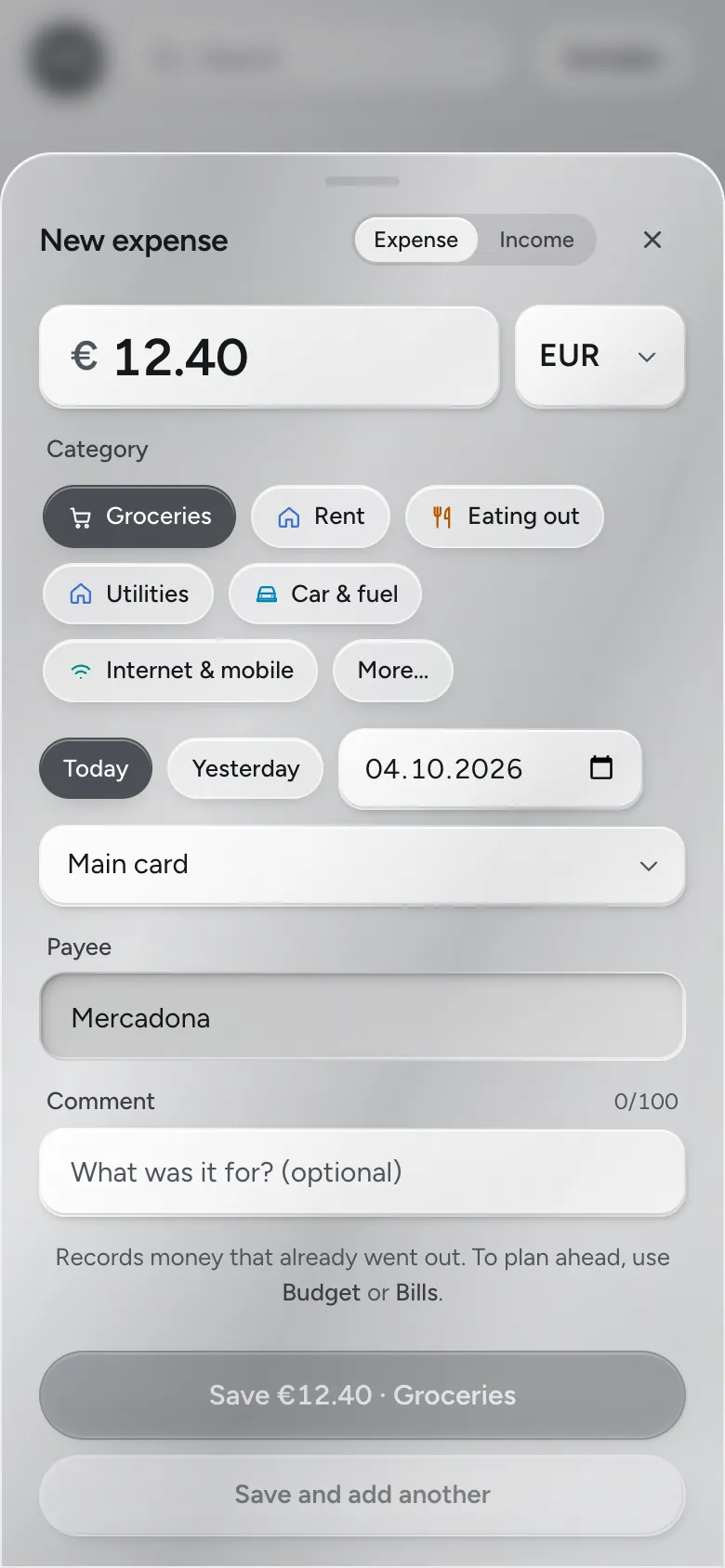
Amount, category, done. Your recent payees are one tap away, and amount fields do sums like 12.50+3.20. On Android, a home-screen widget shows today’s Safe to spend with a + to add.

How it works
Quick add on a phone: €12.40 at Mercadona, Groceries, today.

Payments that write themselves down

On Android, the app can read Google Wallet’s payment notifications, and only those, to add each tap-to-pay purchase for you to review. On iPhone, a Shortcut does the same for Apple Pay.

How it works

Works without a connection

Screens you’ve opened lately open offline too. Quick add, Mark paid and the other everyday actions wait on your device and sync as soon as you’re back online.

How it works

More than one currency

Choose the currency you budget in and keep accounts in others. Spending abroad is converted at that day’s rate, and both amounts are kept.

Funds for the big ones

Insurance once a year, a holiday, a new laptop: put a little aside every month, and the payment doesn’t land on one month alone.

How it works

See where it all went

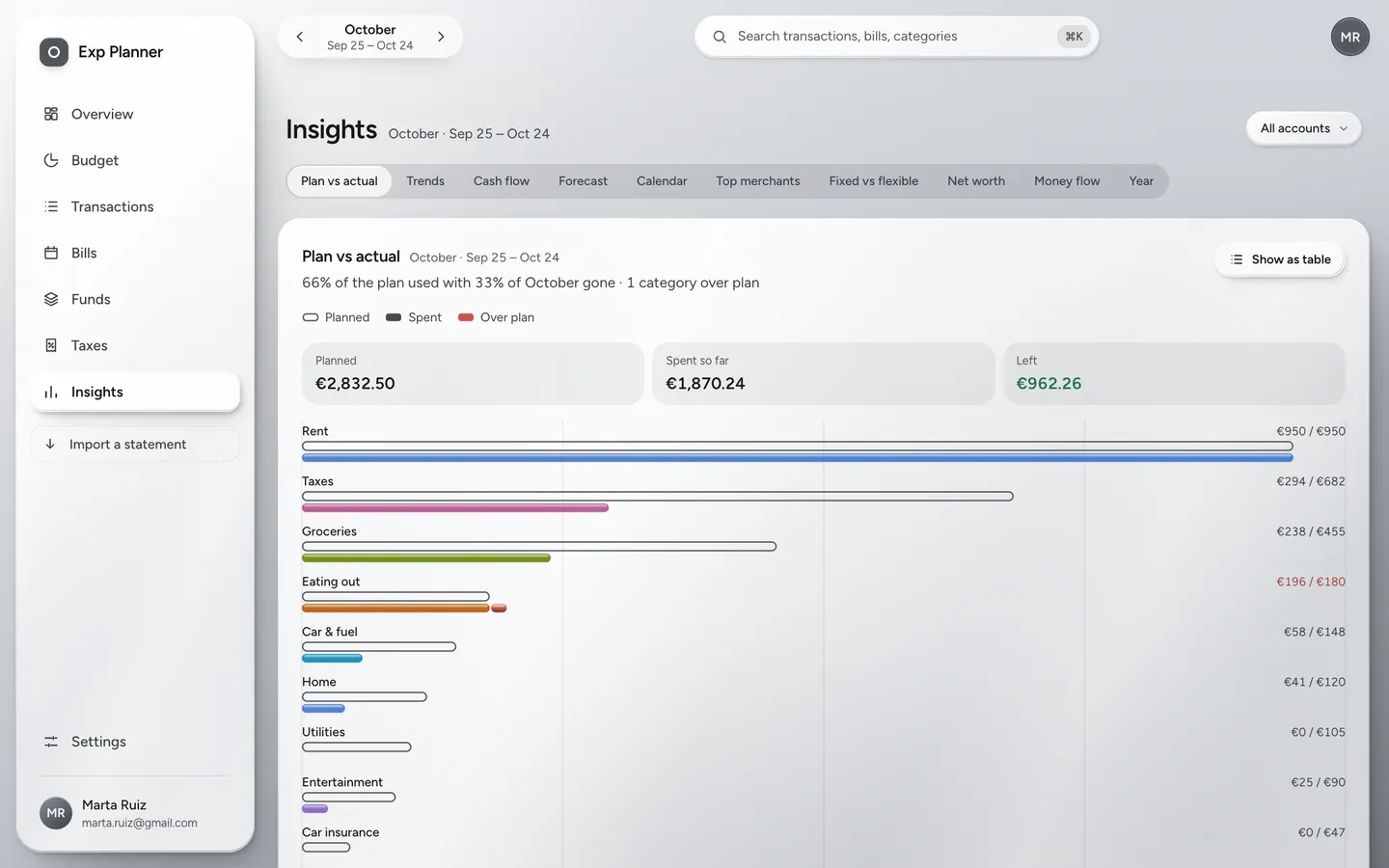
Plan against actual, this month against last, cash flow, a forecast up to a year ahead with “Can I afford this?”, your money’s flow from income to categories, and more.

How it works
The Insights screen: charts of where the money went this month.

Taxes, worked out for you

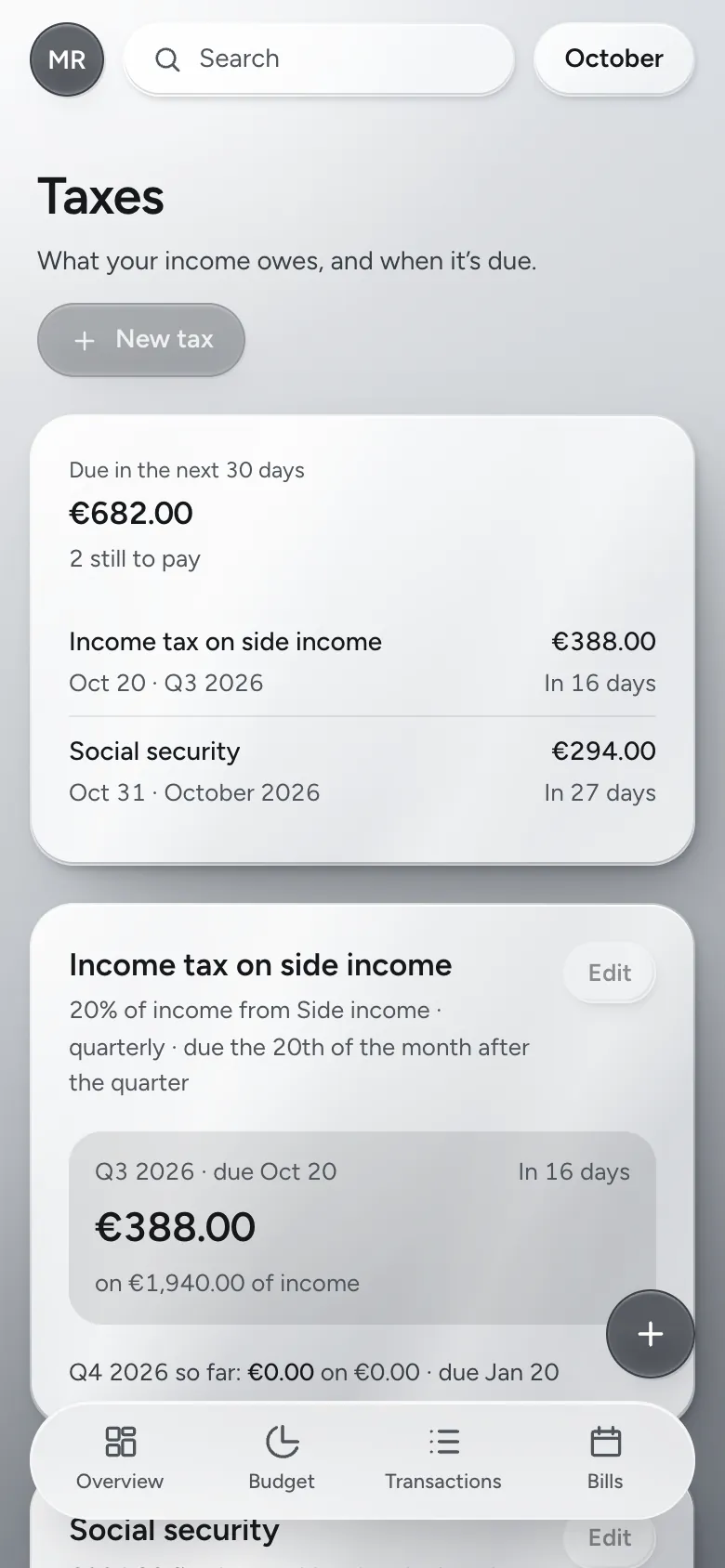
Describe a tax once: a share of your income, a fixed amount, or both, by month, quarter or year. You see what you owe and when, and the amount is added to that month’s budget.

How it works
The Taxes screen on a phone: what’s due in the next 30 days and the next payment for each tax.

Wherever you are

One account on every device: what you add on your phone is on your computer too.

Available now

Web app

Works in any modern browser, on a computer or a phone. Add it to your home screen and it opens in its own window, like an app.

  • Bill reminders as notifications
  • Install from the browser, no store needed
Open the web app
For testers

Android

The full app, with what only a phone can do. Google Play comes next; until then, testers get it straight from us.

  • A home-screen widget with Safe to spend
  • Purchases from Google Wallet
  • Fingerprint or face lock
  • Share a statement straight into Import
Ask to join the testers
Coming soon

iPhone

The iPhone app is on its way. Today, open the web app in Safari and add it to your Home Screen. A Shortcut can log your Apple Pay purchases.

  • Works now from the Home Screen
  • Apple Pay purchases through Shortcuts
Open the web app in Safari

Your money. Your data.

A budget knows a lot about you. Here’s what Exp Planner does with that.

  • Stored in the EU

    Your data is kept in a database in the European Union, and only your account can read it.

  • No ads, no data sales

    There are no ads in Exp Planner, and your data is never sold or handed to advertisers.

  • No bank login

    You bring your statements yourself. The app never asks for the password to your bank.

  • Yours to take or delete

    Export everything as JSON or your transactions as CSV whenever you like, and delete your account with all its data from Settings.

Pricing

Early access

Free

Exp Planner is free while it’s in early access. Paid plans will come later, and you’ll hear about them before anything changes.

  • Every feature, no limits
  • Web app and Android
  • Export your data any time
Open the web app

Questions

How do I get an account?

While Exp Planner is in early access, new accounts are by invitation. Write to support@expplanner.com to ask for one. Once you’re invited, sign in with Google or with your email and a code, the same way every time.

Does Exp Planner connect to my bank?

No. You download a statement from your bank (CSV or Excel) and import it. The app reads the columns, catches rows you already have and fills in categories with your rules. On Android you can share a statement to Exp Planner straight from your bank’s app or your email.

Which banks does the import work with?

Any bank that lets you download a statement as CSV or Excel. Revolut’s format is recognised as is; for any other file you match the columns once, and the app remembers them for next time.

What is “Safe to spend”, exactly?

Your own money on your everyday accounts, minus the bills still to pay this month, what you’re putting aside in funds, and your safety buffer. It’s also shown per day for the days left. If you owe on a credit card, a second figure shows what’s left after paying it.

Where is my data stored?

In a database in the European Union. Only your account can read your data. You can export all of it or delete your account at any time.

Does it work offline?

Mostly. Screens you’ve opened in the last two weeks open without a connection, and everyday actions like adding a purchase or marking a bill paid wait on your device until you’re back online.

Can I use more than one currency?

Yes. You budget in one currency and can keep accounts in others. Purchases in other currencies are converted at the rate of their day.

Is there an iPhone app?

It’s coming. In the meantime the web app works well on an iPhone: open it in Safari and choose Share → Add to Home Screen.

Is the app available in other languages?

The app itself is in English for now. This site is in English and Russian, and more languages will follow.

How much does it cost?

Nothing while Exp Planner is in early access. Paid plans will come later, and you’ll be told well before anything changes.

More questions in the wiki